Logging a session
Tap the + button, or a discipline under Start training on the Today page. The session opens full screen with your last discipline already selected.
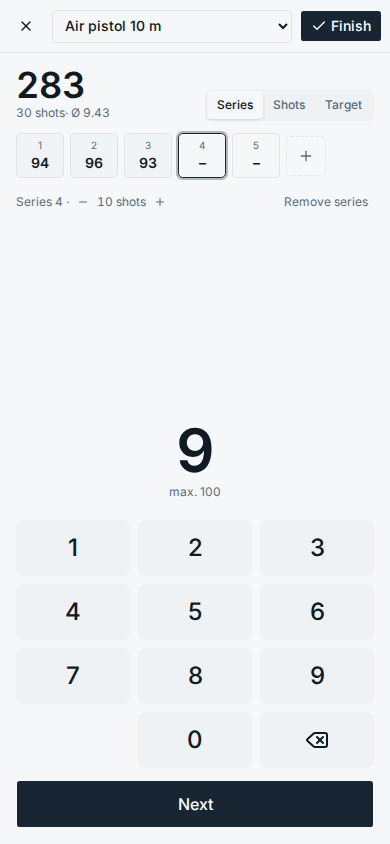
At the top you see the running total, the number of shots and the average per shot. Below that is a chip for every series. Tap a chip to correct that series, tap + to add one, or use Remove series for the current one. The minus and plus next to "10 shots" change the number of shots of the current series, e.g. for a 5-shot series at 25 m.
Three ways to enter a series
Choose the input for the current series at the top right. You can mix them in one session, e.g. totals for the first four series and every shot for the last two.
- Series
- Type the series total. As soon as no further digit could make the number valid, Targetlog takes it and jumps to the next series. "9", "3" gives 93 and moves on; a 100 needs "1", "0", "0". With decimal scoring the point is added for you: "1", "0", "2", "7" gives 102.7. Next takes the number as it is.
- Shots
- Tap the value of every shot. With decimal scoring type two digits, e.g. "9", "7" for 9.7, or three for a ten, e.g. "1", "0", "4" for 10.4. After the last shot of a series the next series starts.
- Target
- Tap where every shot hit. Targetlog computes the value from the target face of the discipline, with decimals if the discipline is scored that way. The magnifier switches between the black and the whole target. This is the only way to get the group analysis.
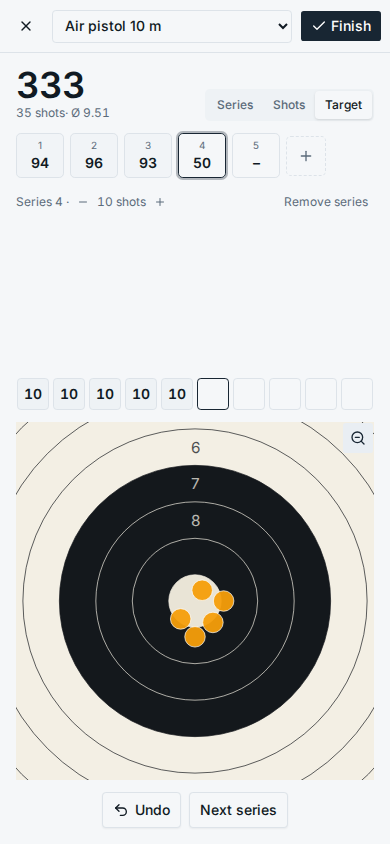
On a computer you can type the digits, Backspace and Enter on the keyboard.
Save
When the last series is complete, or when you tap Finish, the save sheet opens. Everything in it is optional:
- Training or competition: competitions appear as their own dots in the trend and are compared with your training.
- Weapon: which of your weapons you shot with. A new session starts with the weapon of your last session in the same discipline; tap it again to clear it, or add a new weapon right there.
- How did it feel?: five faces from bad to great.
- Tags: short words for what was special, e.g. new grip, tired, new pellets. Progress compares the sessions with a tag to your average.
- When, where, notes. Where starts with the place of your last training.
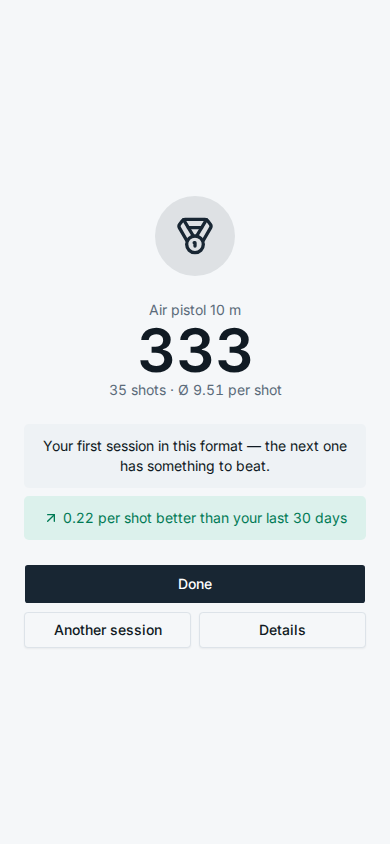
After saving Targetlog tells you right away:
- whether the session is a new personal best, or which place it takes among your sessions with the same number of shots;
- how many points per shot it is above or below the average of the 30 days before.
Unfinished sessions and offline
The session is kept on the device while you type. If you close the browser or the phone locks, it comes back the next time you start a session.
If there is no connection when you save, the session is kept on the device and uploaded as soon as you are online again. A note on the Today page shows how many sessions are waiting. A retried upload never creates a session twice.
Changing or deleting a session
Open the session in the Log and use the pencil to change it, or the bin to delete it.